In this post we have a quick simple tip showing you how to change the size of your Blogger profile picture as it appears in the about me gadget on your blog.By default the image is quiet small around 80×80 pixels, By adding piece of css to your blog you can set the image to any size you like.This will help spice up what is a very plain gadget and give you more option when it comes to the profile image you use.We will be adding the code to your template via the template designer so it couldn’t be easier.

Change The Size Of Your Profile Picture In Blogger About Me Widget
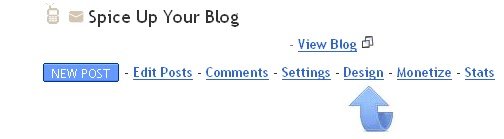
Step 1. In your Blogger dashboard click Design > Template Designer
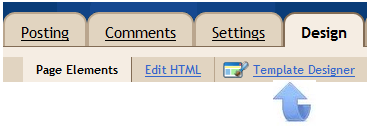
Step 2. In the template designer click Advanced > Add Css (It’s the last option on default templates so you will need to scroll and the only option on custom templates.
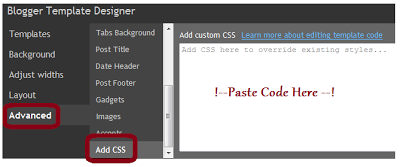
Step 3. Copy and Paste the following code into the Css section
.profile-img{height:124px;width:124px;}
Note – I have the height and width at 124×124 you can change them to your desired size.
Step 4. Click Apply To Blog In Top Right Of Page.
And that’s it you now have control over the size of your profile picture.
Drop Your Comments And Questions Below.
What My Robot Recommends:
- Automatically Post Your YouTube Videos On WordPress And Blogger
- Adding Post Titles To Older Post Newer Post Links On Blogger
- How To Add Footer Columns On Blogger To Display Labels
- Change The Size Of Blogger Profile Picture In About Me Gadget
- How To Make All Text On Your Blog Lowercase, Capitalized Or Uppercase