


Twitter is a great way to connect with the readers of your blog and find people with similar interests who you can inform about your blog.First up if you have a blog and you don’t have a Twitter account you are missing out, get one now.You can get more traffic to your blog from Twitter and it’s actually good fun.
Click here set up your Twitter and we can continue…Ready ?
Twitter can be as almost effective as Followers and Rss feed at keeping people connected to your blog and updated when you publish new content.When someone arrives on your blog you want to have the options for them to connect with you in prime positions.Your Rss feed link should be near the top of the page if you use followers this should have a prime position,similarly you should have a link to follow you on Twitter easily accessible.
The Follow on twitter badge we will be adding in this post is the one I’m currently using (I’m always changing this blog it may be different by the time you read this )

The image is fixed to the side of your blog and stays in position when the page is scrolled, when clicked it will open your Twitter Profile in a new window for the reader to follow you.
Lets add it to your blog
1.Click Layout–>Edit html for your blog
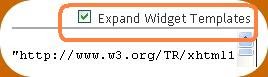
(Tick the ‘Expand widget template’ box.)


2.Find the following piece of code in the html:
(Click ‘CTRL and F’ for a search bar to find the code)
]]></b:skin>
3.Add the following piece of code Directly Above it :
#float_corner {
position:fixed;_position:absolute;bottom:10px;left:3px;clip:
inherit;_top:expression(document.documentElement.scrollTop+document.documentElement.clientHeight-this.clientHeight);_left:expression(document.documentElement.scrollLeft + document.documentElement.clientWidth - offsetWidth);}
Note:
This will position the image just up from the bottom left corner of the page.
You can change this just change the following attributes : bottom :left
Change them to make the image appear were you like :
-top left
-top right
-bottom left
-bottom right
You can also change 10px to move the image position up and down the page and 3px to move the image in and out from the side of the page.
4.Now find this code in your html :
</body>
5.And place this code Directly Above it :

<a href='http://www.spiceupyourblog.com'><img alt='Best Blogger Tips' src='http://3.bp.blogspot.com/_rKG-ziTSNUQ/TQ5eV0U0EiI/AAAAAAAACik/xo2eFaDbfrE/s1600/best+blogger+tips.png'/></a><div id="float_corner">
<a href="ENTER YOUR TWITTER URL HERE">
<img src="http://1.bp.blogspot.com/_rKG-ziTSNUQ/TP7GSQ9J8MI/AAAAAAAACbA/fRt2CTKMQwE/s1600/follow+me+on+twitter.png" border="0" /></a>
</div>
You Must change the following attribute :
ENTER YOUR TWITTER URL HERE – Replace with the address of your twitter profile.
Example: http://www.twitter.com/paulcrowepro
Once you have made these changes save your template and the image has been addedYou can make of find a different image and use that, if you need help with that let me know.You can follow me on Twitter here: Follow @paulcrowepro
We have lots more Twitter Gadgets And Tips for you to check out.
Drop Your Comments, Views And Questions Below.