

There are a number of reasons why you may want to place a divider between your blog posts.From the tidy professional look it adds to having a handy clickable image link as your divider or maby your blog looks very cramped or overlapping and you want to space it out a bit.If you don’t want to add an image i will also show how to add a simple colored horizontal line as your divider.
Were can you place it ?
You can have your divider directly below the post and before the labels, posted by and comment information or you can place the divider anywhere below your post including below the comment area as the very bottom or before your posts.
Your divider can also be a hyperlink (a clickable link) that when clicked leads to for example you blogs rss feed.
I will show you how to make your divider a hyperlink or just have a decorative divide thats not ‘clickable’.
So lets get it done :
First Here are some examples you could use :

Image URL:
http://i941.photobucket.com/albums/ad259/spiceupyourblog/divider.jpg

Image URL:
http://i941.photobucket.com/albums/ad259/spiceupyourblog/th33q3.gif

Image URL:
http://i941.photobucket.com/albums/ad259/spiceupyourblog/post-divider.png

Image URL:
http://2.bp.blogspot.com/_aPQLdoaGgrk/Ss9s8vCqFNI/AAAAAAAAAJE/C_eMWXVUebw/s320/rss.jpg
You can use any of these images or find your own image on image hosting websites like Photobucket.
Adding the divider to your blog.
1.Click ‘Layout’–>’Edit Html’ for your blog
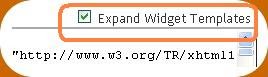
(Tick ‘expand widget templates’ box)


2.Here you have two options
– To put your divider below the post content find this code :
(Basically after the last word of the posts)
Note:If this code is in your template twice place your divider after the second.
<data:post.body/>
If you cant find that just look for data:post.body without the enclose < > tags.
– To put the divider below the complete post find this code:
(Below the labels ,post time,auther..)
<div class='post-footer-line post-footer-line-3'/>
(Press ctrl f for a search bar to search for the code)
3.Add the following piece of code Directly Below the code you found from above.

<a href='http://www.spiceupyourblog.com'><img alt='Best Blogger Tips' src='http://3.bp.blogspot.com/_rKG-ziTSNUQ/TQ5eV0U0EiI/AAAAAAAACik/xo2eFaDbfrE/s1600/best+blogger+tips.png'/></a><br/><center><a href='PLACE YOUR TARGET URL HERE'><img border="0" src='PLACE YOUR IMAGE URL HERE'/></a></center>
You now must make two change to the code:
1.Were the code above has PLACE YOUR TARGET URL HERE add the address you want the image to lead to when clicked
Example : http://www.spiceupyourblog.com
2.Were the code above has PLACE YOUR IMAGE URL HERE add the link to the image you wish to use such as the image URLs above
Example :http://i941.photobucket.com/albums/ad259/spiceupyourblog/divider.jpg
If you dont want the image to be a clickable link just use this code:
<center><img border="0" src='PLACE YOUR IMAGE URL HERE'/></center>
As above : Were the code above has PLACE YOUR IMAGE URL HERE add the link to your image.
To use a simple horizontal line as your divider use this instead of the image code:
<br/><hr color='red'/><br/>
It will look like this:
You can change the color ‘red’ to suit your blogs appearance.
Once code you choose is added click save and your done !!
Drop Your Comments And Questions Below.