

The ‘Tweet This’ or ‘ReTweet’ Twitter counter button is the latest ‘Must Have’ feature on all Blogs.Only a year ago it was the ‘Digg This’ button that was displayed but they have almost all been replaced.Adding the Twitter Tweet This button to your blog is easy and in this post we will look at how to add it to the top of your blogger posts and the bottom of your blogger posts.
The button can be set to float on the left or right of your posts this allows it to be ‘wrapped in text’ and fit in nicely as you currently see on this blog.I have the button at the top and bottom of the posts just to make it easy for the readers.
You will notice i also have the ‘Share This’ button Placed above the Twitter button and i will show you how to add both the Twitter and Share This buttons or just the Twitter button.
The Share This Button opens up a selection of bookmarking options when you place your cursor over it.You can test both buttons above.
Here Is A Preview Of The Buttons :
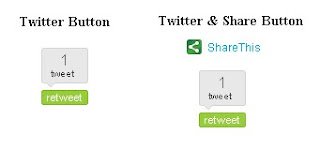
Here’s the steps to add the buttons
1. Get To Your Blogs Html
Click ‘Layout’ ► ‘Edit Html’ ► Tick The ‘Expand Widget Templates’ Box
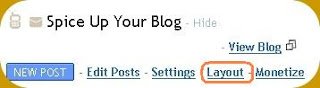

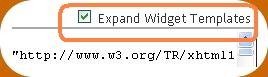
2. Find The Area For The Button
In your blogs Html find the following code:
(Click ‘Ctrl and F’ for a search bar to help find the code – For more help on this click ‘Extra Help’ link at the top of the post)
<data:post.body/>
3. Select Your Button
Pick The Button You Want Added from the options Below then copy the code.
Twitter Only Button Code :
<a href='http://www.spiceupyourblog.com'><img alt='Best Blogger Tips' src='http://3.bp.blogspot.com/_rKG-ziTSNUQ/TQ5eV0U0EiI/AAAAAAAACik/xo2eFaDbfrE/s1600/best+blogger+tips.png'/></a><div style='float:left; margin-right:10px;'>
<script type='text/javascript'>
tweetmeme_url = '<data:post.url/>';
</script>
<script src='http://tweetmeme.com/i/scripts/button.js' type='text/javascript'> </script>
</div>
Twitter and Share This Code :
<a href='http://www.spiceupyourblog.com'><img alt='Best Blogger Tips' src='http://3.bp.blogspot.com/_rKG-ziTSNUQ/TQ5eV0U0EiI/AAAAAAAACik/xo2eFaDbfrE/s1600/best+blogger+tips.png'/></a><div style='float:left; margin-right:10px;'>
<script src='http://w.sharethis.com/button/sharethis.js#publisher=bea50586-2b9f-448d-947a-01385f28e305&type=website&post_services=facebook%2Ctwitter%2Cdigg%2Cdelicious%2Cstumbleupon%2Cemail%2Cgoogle_bmarks%2Cmyspace%2Creddit%2Ctechnorati%2Cybuzz%2Clinkedin%2Cwindows_live%2Csms%2Cbebo%2Cblogger%2Cyahoo_bmarks%2Cmixx%2Cfriendfeed%2Cpropeller%2Cwordpress%2Cnewsvine%2Cxanga%2Ctypepad' type='text/javascript'/>
<br/><br/>
<script type='text/javascript'>
tweetmeme_url = '<data:post.url/>';
</script>
<script src='http://tweetmeme.com/i/scripts/button.js' type='text/javascript'> </script>
</div>
4. Were To Place The Buttons
To place the button/buttons at the top of your posts paste the code Above : <data:post.body/>
To place the button/buttons at the bottom of your posts paste the code Below : <data:post.body/>
You can also Paste the code above and below And have the button/buttons at the top and bottom of your blogger posts.
Once you have the code added click save.
Move the Button/Buttons from the left to the right
The buttons above are set to be on the left of your posts but you can move them to the right.
In the code for your Button/Buttons change the first line of code like this :
From :
<div style=’float:left; margin-right:10px;’>
To :
<div style=’float:right; margin-left:10px;’>
Thats your Twitter and Share This buttons added !
You can use different buttons from Twitter like the compact Twitter button, you can find that button and other Twitter gadgets and widgets on the Twitter Goodies Page.
As always help is only a comment away, Have you added the buttons ?